2026/10/22
AI 3D Models for AR and the Web: A Practical Readiness Checklist
Learn how to review an AI-generated 3D model for web and AR use, including file size, materials, scale, orientation, mobile performance, and viewer testing.
AI 3D Models for AR and the Web: A Practical Readiness Checklist
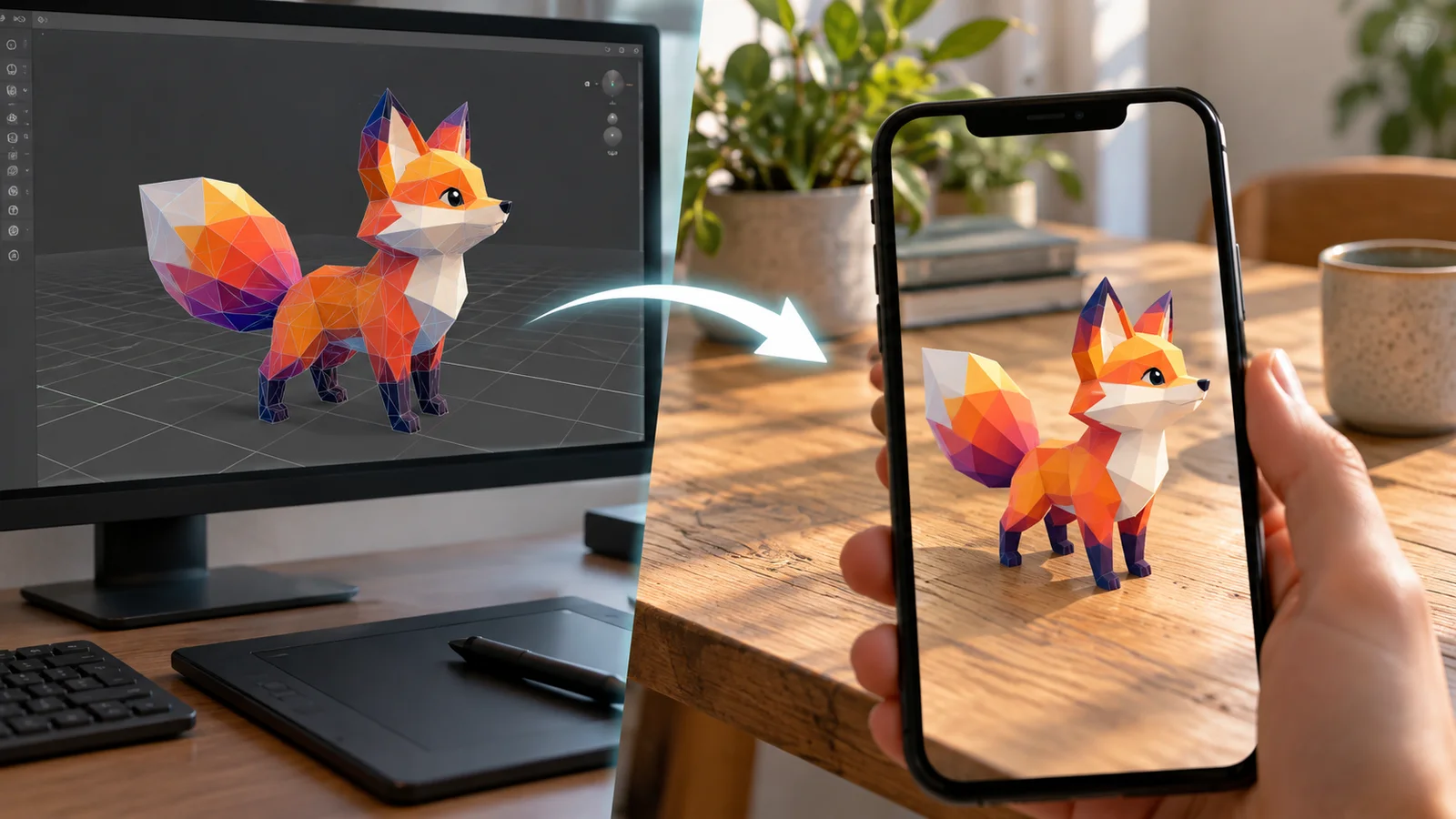
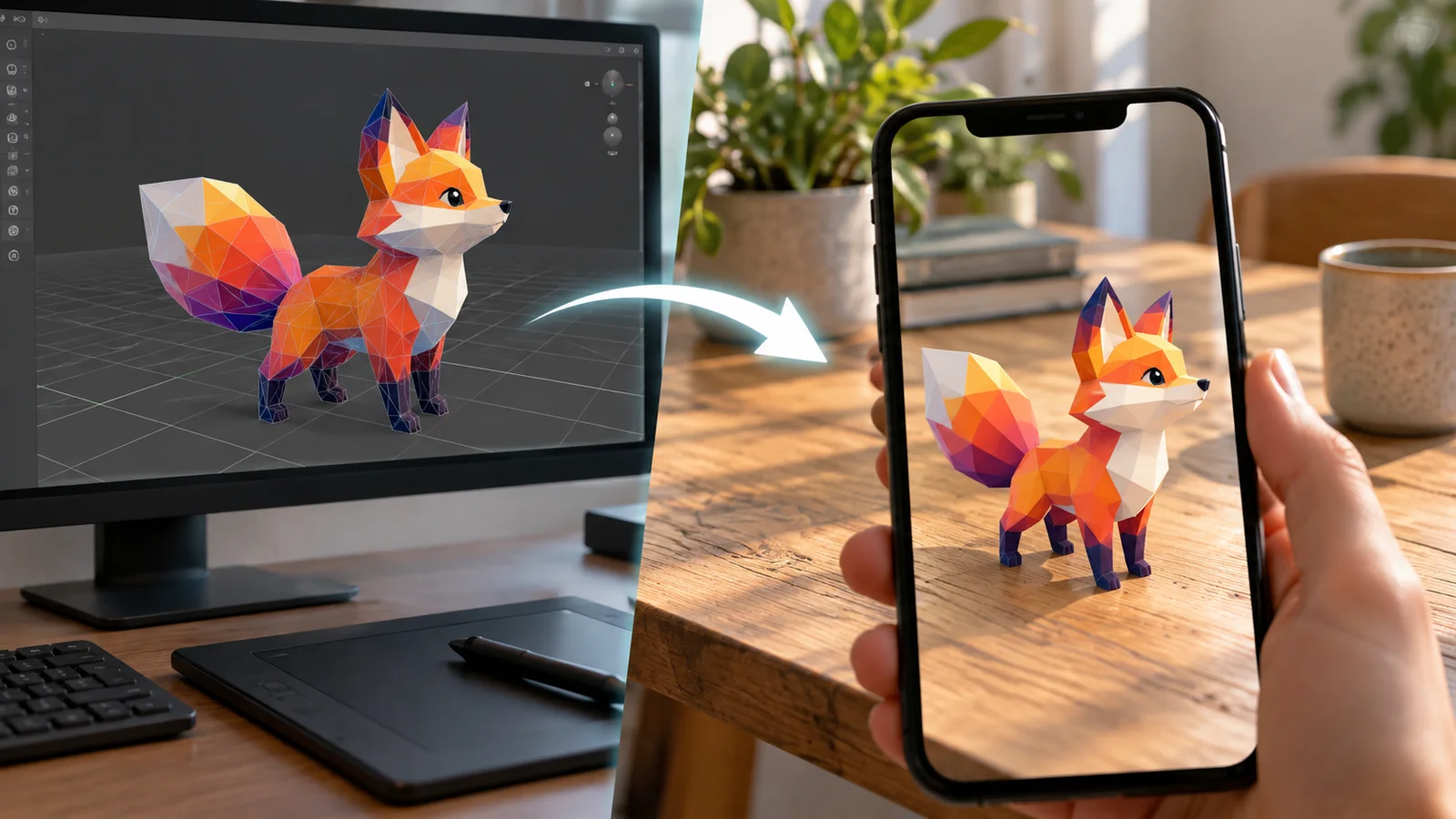
An AI-generated 3D model can be a useful starting point for a web viewer or augmented-reality preview, but a successful generation is only the first check. Web and AR experiences need assets that load quickly, display correctly on a phone, and use a format the target platform can read. A desktop preview alone cannot confirm that an asset is ready for mobile.
Prepare the model for a browser viewer
Start with a format supported by your target viewer. GLB is commonly used for web delivery because it can package geometry, materials, and textures in one file. Check the model's orientation and scale, and make sure its materials look right under the viewer's lighting. Remove hidden geometry and oversized textures when they do not contribute to the result.
For an initial asset, create a model from a prompt or image with the AI 3D model generator, then use the online 3D model viewer to inspect it from different angles.
Web and AR readiness checklist
- Confirm the file format and size limits for the viewer or AR platform.
- Open the model in a browser-based 3D viewer and inspect front, side, top, and underside views.
- Test the materials on a mobile device; check that the object is not too dark, transparent, or reflective.
- Verify real-world scale and orientation before placing the object in an AR scene.
- Test loading time and interaction on a typical mobile connection, not only on a fast desktop.
Optimize for the device, not just the preview
Large textures and dense meshes can slow down a page or make a mobile AR session feel unresponsive. Reduce detail that is invisible at the expected viewing distance. Check whether the platform supports the material features in the file, especially transparency and advanced reflections. Keep a high-quality source copy, then create optimized versions for the web when needed.
If the model is used for product visualization, confirm that dimensions, color, and visible features match the real product. For interactive AR, also check the object's pivot, placement surface, and whether it remains stable as users move around it.
Which 3D format is best for web AR?
It depends on the viewer and platform. GLB is widely used for web delivery, but verify the exact format and material support of your target AR experience.
How can I preview a 3D model online?
Open it in a browser 3D model viewer, rotate it through all sides, and repeat the check on a phone to catch scale, lighting, and performance issues.
Create a starting asset in the AI 3D model generator and inspect it with the 3D model viewer.
More Posts
ToolsTutorials
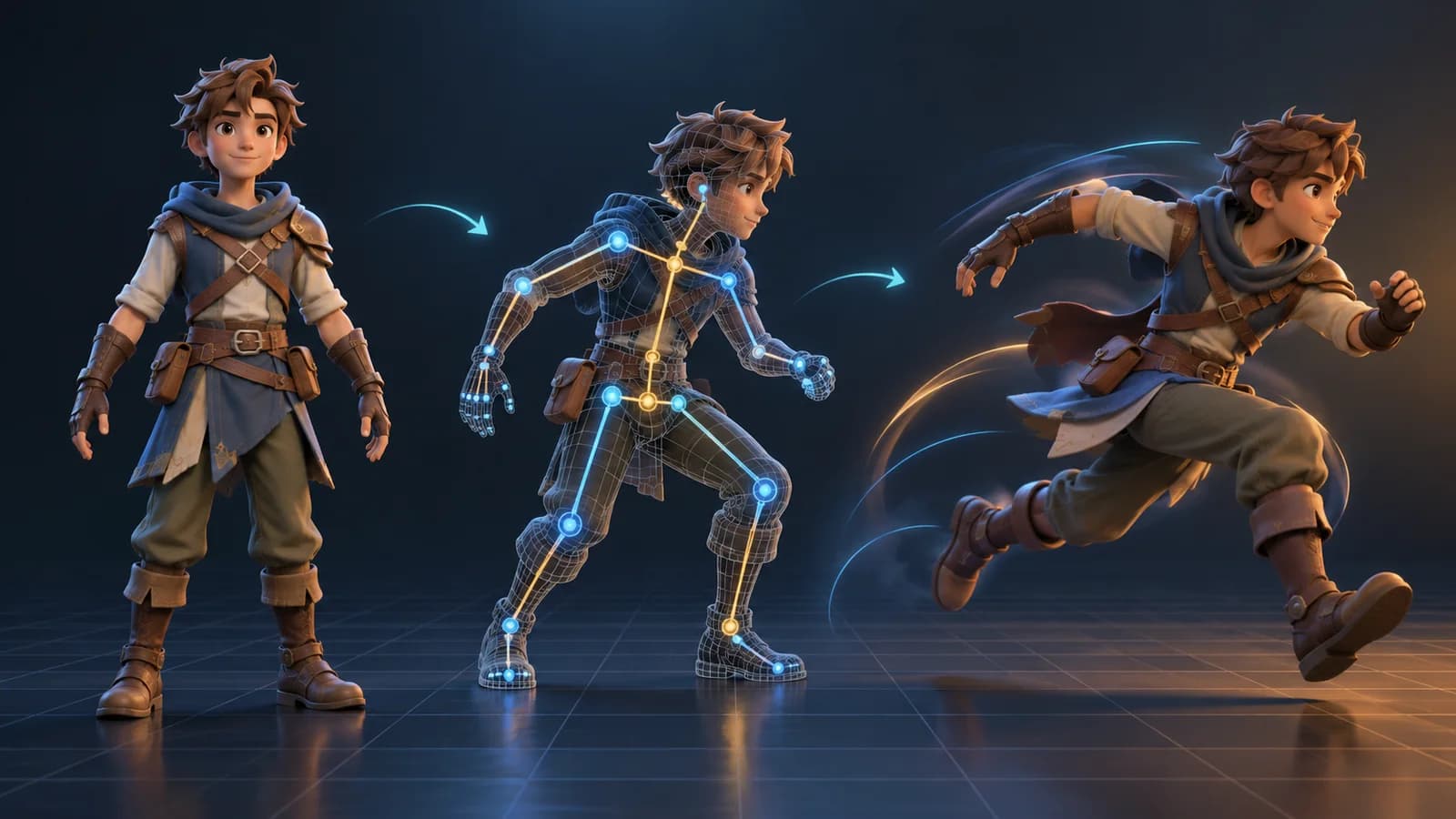
AI 3D Animation Generator: Animate an Existing 3D Model
Learn how an AI 3D animation generator can add motion to a riggable model, choose a suitable action, inspect the animated GLB, and export a usable result.

ToolsTutorials
AI 3D Game Props Generator: From Concept to Reusable Asset
A practical guide to using an AI 3D game props generator for readable silhouettes, consistent asset styles, useful prompts, and engine-ready review.

ToolsTutorials
AI Creature Animation: A Practical Workflow for Non-Human Models
Learn how to test AI creature animation on dragons, animals, and stylized monsters, with realistic expectations for rigging, limb structure, motion selection, and cleanup.
Newsletter
Join the community
Subscribe to our newsletter for the latest news and updates