2026/09/07
3D Text for 3D Printing: Make Names, Letters, and Signs That Print Cleanly
Create 3D printable text, letters, names, and signs with a reliable workflow. Learn font choices, wall thickness, spacing, STL export, and slicer checks.
3D Text for 3D Printing: Make Names, Letters, and Signs That Print Cleanly
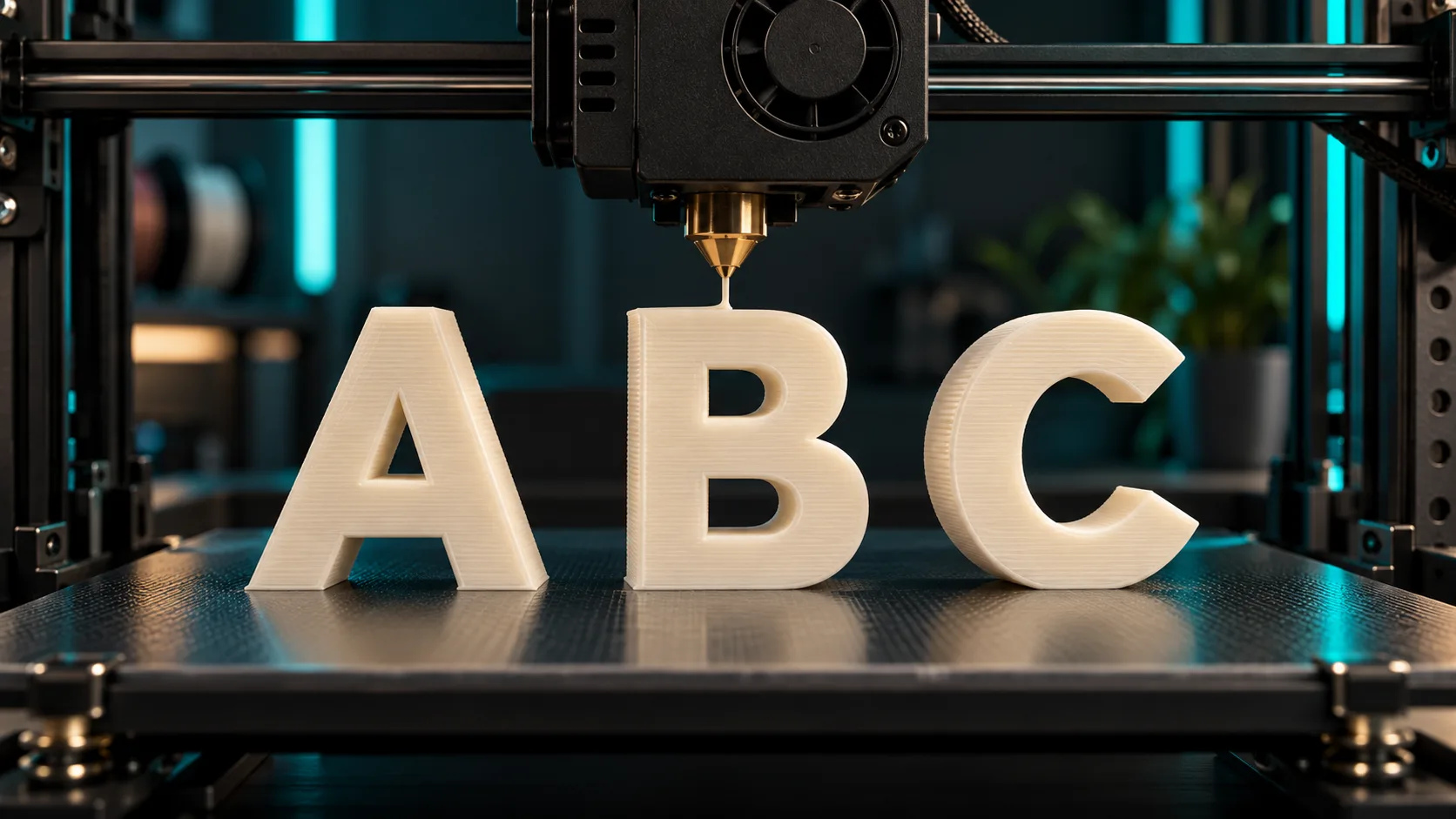
3D text for 3D printing turns names, letters, labels, and signs into physical objects. The main challenge is not generating decorative lettering; it is creating text that has enough thickness, spacing, and support to survive slicing and printing.
Start with simple, bold shapes. Fine script lettering and very thin details can look good on screen but fail on a printer. A 3D text generator can produce a concept quickly, then the slicer tells you whether it is practical at your chosen scale.
Pick a print-friendly 3D font
For a 3D printed name or a 3D name sign, choose lettering with generous strokes and open spaces inside letters. Sans-serif block styles are usually easier than delicate script. Avoid narrow joins, floating pieces, and holes smaller than your printer can reproduce.
Make decisions in this order:
- Choose the words and the installation method: freestanding, wall-mounted, or embossed.
- Choose a thick, readable style.
- Add enough depth for the material and printer.
- Join letters with a backing plate if individual letters would be fragile.
- Review the result in a slicer before printing.
Generate and export a text STL
Use Text to 3D for the starting concept, then export the model and prepare it for print. If you need format conversion, Magic3D's 3D converter supports GLB-to-STL conversion.
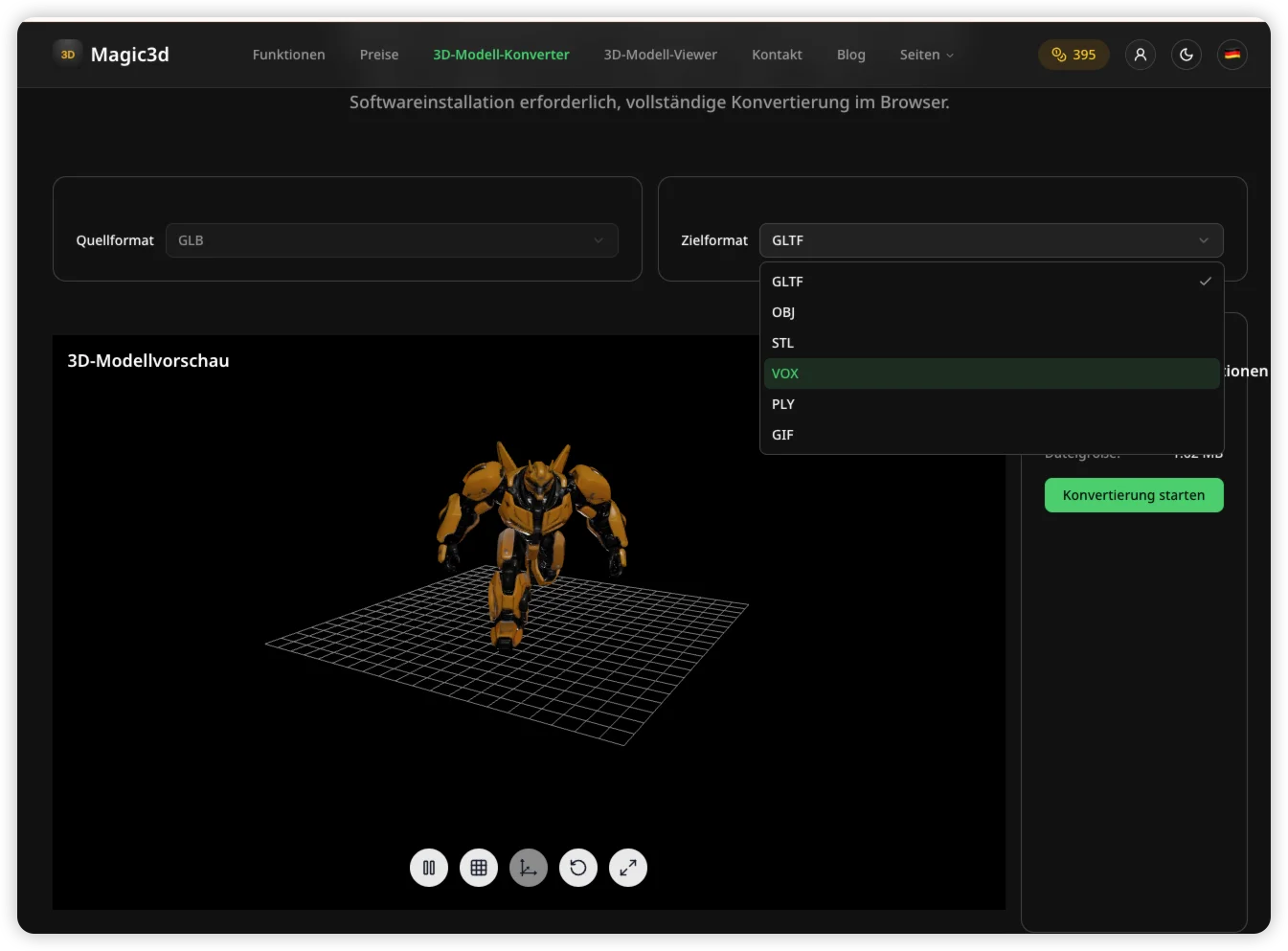
An STL only describes surface geometry. It does not guarantee that the model has suitable walls, a flat base, or printable overhangs. Those checks happen after export.
Slicer checklist for printable text
| Check | What to look for |
|---|---|
| Scale | Is the text large enough to read and print? |
| Wall thickness | Are thin strokes stronger than your printer's minimum? |
| Base | Does the model sit flat or need a backing plate? |
| Letter spacing | Will adjacent letters fuse after extrusion? |
| Overhangs | Does the chosen orientation need supports? |
| Mesh health | Is the object manifold with no open surfaces? |
Run a small test print before committing to a large sign. A half-scale test often reveals problems with small counters, sharp corners, or fragile connections.
Raised, engraved, and freestanding letters
Raised lettering sits on a flat surface and is the easiest option for a plaque, tag, or lid. Engraved lettering cuts into the surface and is useful for labels. Freestanding letters need a broad base or a separate stand because each letter has to resist bending and tipping.
For a personalized 3D print letter generator workflow, a connected nameplate is usually more durable than individual letters. It also simplifies placement on the print bed.
Common failures
Thin strokes snap. Increase the font weight, depth, or backing thickness.
Letters detach from the bed. Add a brim, orient the model for more contact area, or add a backing plate.
Inside holes fill in. Enlarge small counters and check the nozzle diameter against the model scale.
The sign warps. Use a thicker base, suitable material settings, and a test print before increasing size.
Can I make text to STL from a prompt?
You can use a 3D text prompt to create the starting geometry. For a dependable print, validate it in a slicer and adjust dimensions before exporting the final STL.
What is the best font for 3D printed letters?
Use bold, uncomplicated lettering with open counters and sufficient spacing. The best choice depends on printer resolution, nozzle size, material, and final scale.
Can I print a 3D name sign without supports?
Often yes when it lies flat with a backing plate or when the letter geometry avoids steep overhangs. Preview every layer in your slicer rather than assuming the model is support-free.
Generate the lettering concept in Magic3D, then validate it as carefully as any functional print.
3D Text for 3D Printing: Make Names, Letters, and Signs That Print CleanlyPick a print-friendly 3D fontGenerate and export a text STLSlicer checklist for printable textRaised, engraved, and freestanding lettersCommon failuresCan I make text to STL from a prompt?What is the best font for 3D printed letters?Can I print a 3D name sign without supports?
More Posts
ToolsTutorials
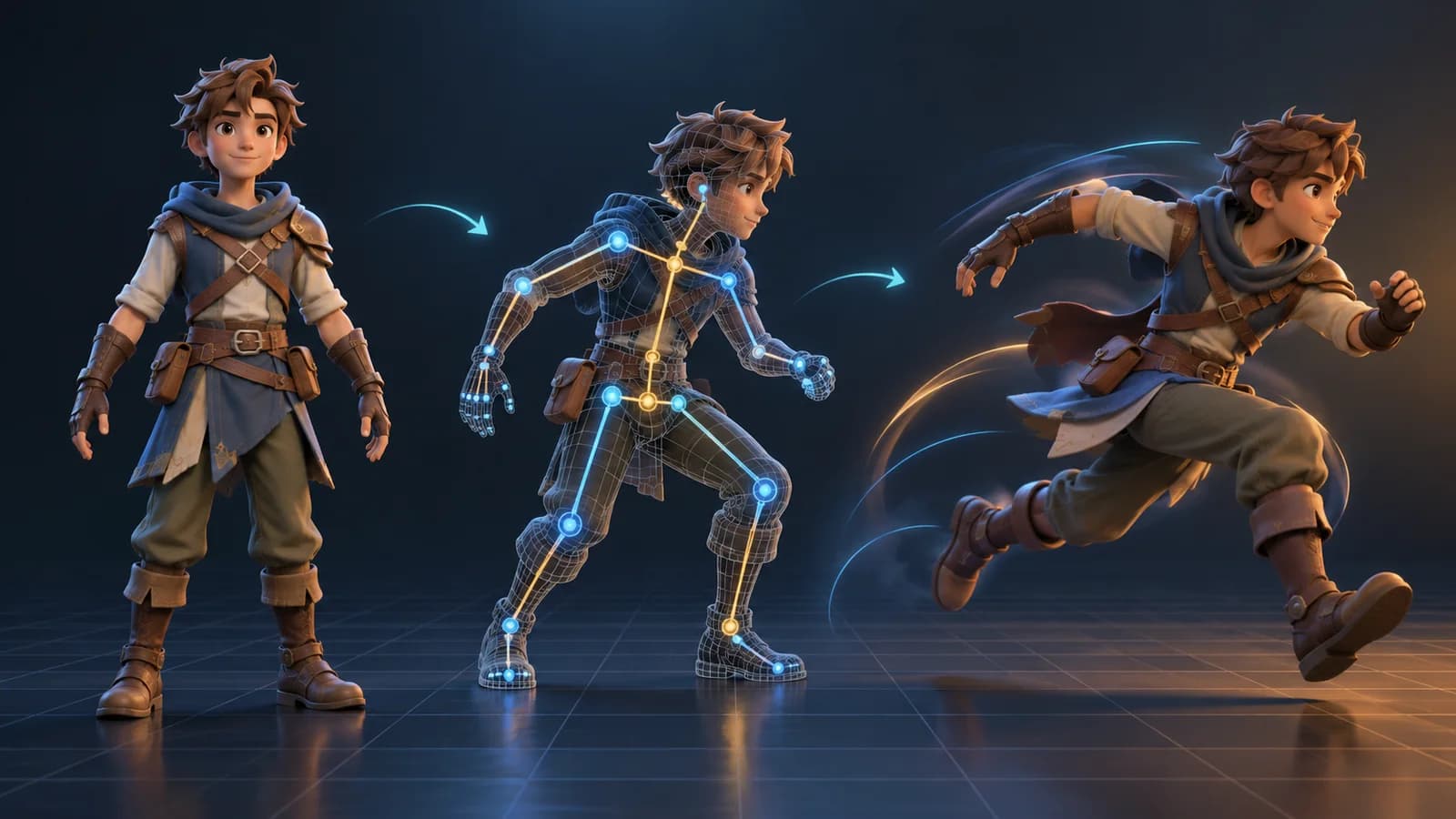
AI 3D Animation Generator: Animate an Existing 3D Model
Learn how an AI 3D animation generator can add motion to a riggable model, choose a suitable action, inspect the animated GLB, and export a usable result.
ToolsTutorials
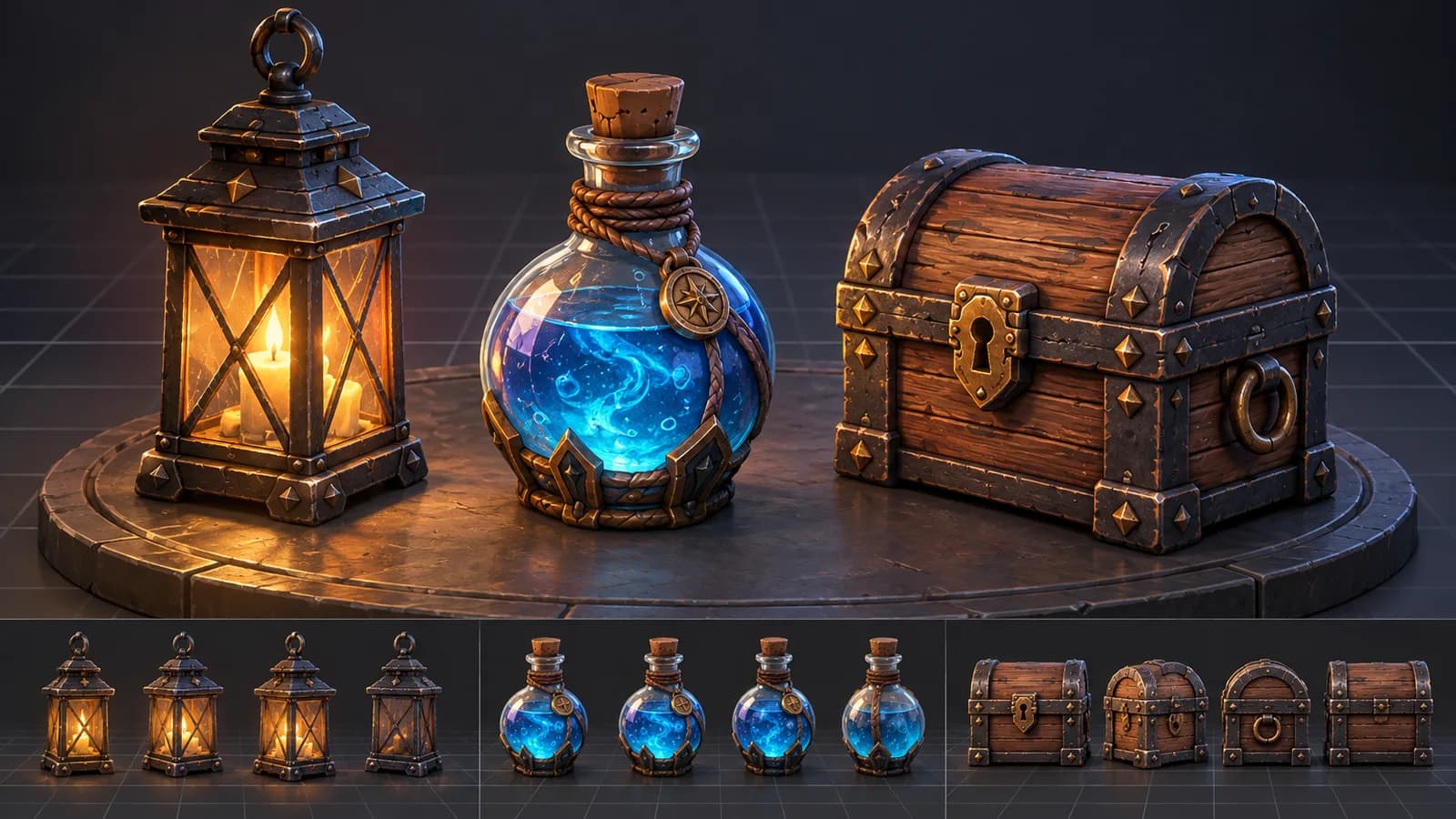
AI 3D Game Props Generator: From Concept to Reusable Asset
A practical guide to using an AI 3D game props generator for readable silhouettes, consistent asset styles, useful prompts, and engine-ready review.
ToolsTutorials
AI 3D Models for AR and the Web: A Practical Readiness Checklist
Learn how to review an AI-generated 3D model for web and AR use, including file size, materials, scale, orientation, mobile performance, and viewer testing.
Newsletter
Join the community
Subscribe to our newsletter for the latest news and updates